
Background Remove explains a workflow for reusable transparent PNG assets
Background Remove describes how transparent PNG cutouts can be reused in product imagery, presentations and creator layouts. A transparent cutout lets creators reuse one portrait, product or prop in several designs without carrying its original background into every layout. Background Remove describes how this workflow supports product imagery, thumbnails, presentation cards and stickers.
Background RemoveEugene, US
A transparent cutout lets creators reuse one portrait, product or prop in several designs without carrying its original background into every layout. Background Remove describes how this workflow supports product imagery, thumbnails, presentation cards and stickers. The cutout is a design asset: a separate editor handles the composition, text and replacement background.
-
Start with a suitable source photo Choose a sharp, well-lit image with a clearly visible subject. Check that hair, fabric, hands, and the edges of the object are not cropped unintentionally. Keep a copy of the original so you can return to it when an edit needs correcting. Use material you have permission to edit and publish.
-
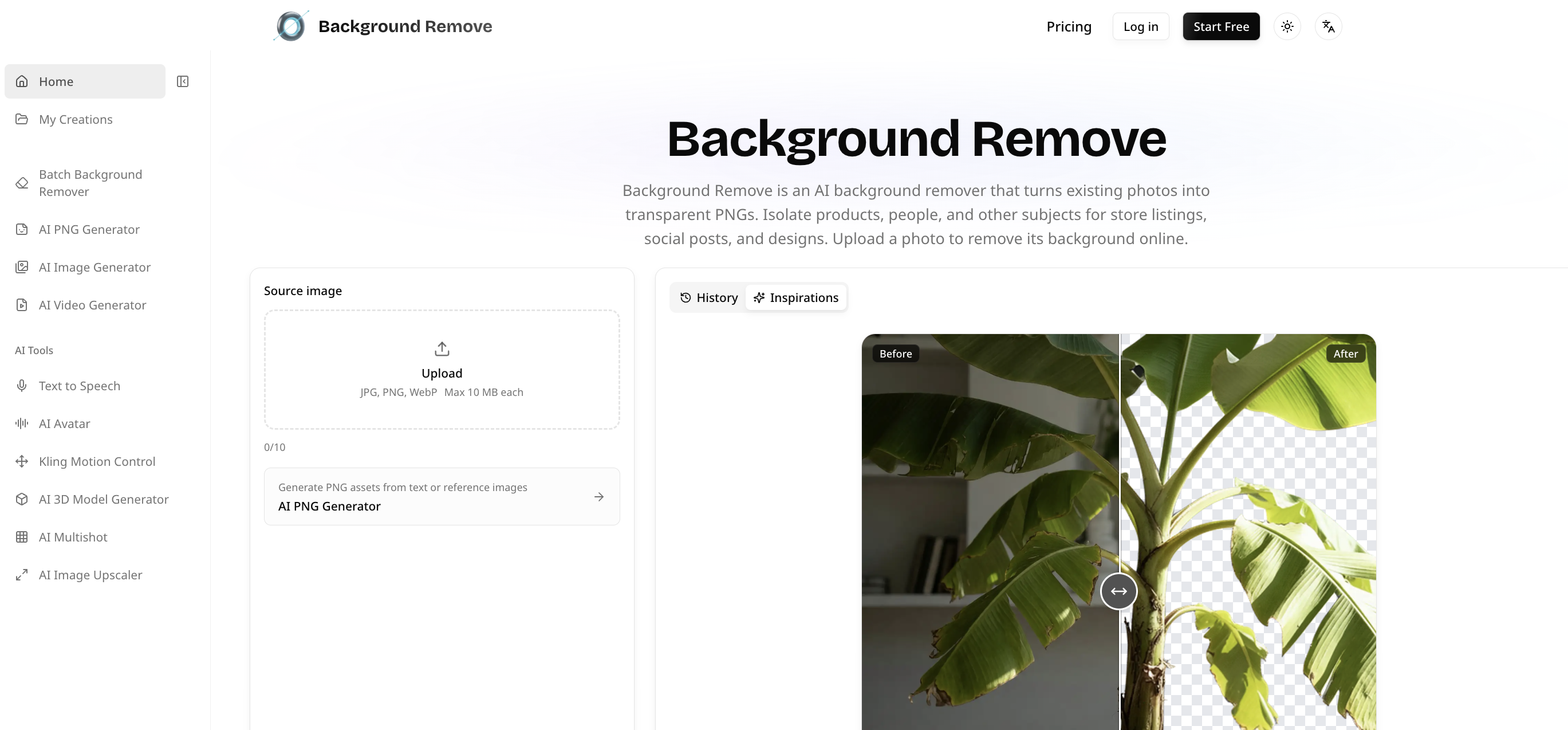
Choose removal or generation For a person or object that is already in a photo, use background removal. Generating a new image is a different task and should not be confused with preserving the subject in your original photograph. In Background Remove, the removal workspace accepts JPG, PNG, and WebP images, up to 10 MB each, and supports working with multiple photos. The separate Transparent Image Maker is for creating new PNG assets from text or reference images.
-
Inspect the result before designing After processing, zoom in around hair, clothing, and narrow gaps. Place the result over a light background, then a dark one, in your design editor. This makes missing edges or leftover background easier to spot. A checkerboard usually indicates transparency, while a white canvas in an image viewer does not necessarily mean the image has a white background. Check the actual file in a layout before processing it again.
-
Keep a transparent master Download and retain the PNG as your reusable master. JPEG cannot preserve transparency. If a finished social graphic needs JPEG, export that version after adding the intended background, but keep the original PNG for future designs. Give the files useful names so that the source, cutout, and finished graphic remain easy to distinguish.
-
Adapt the layout to each channel Position the subject with enough room for headings and buttons, check contrast, and preview the graphic at the size viewers will actually see. Keep important details away from areas likely to be cropped. When preparing several photos, review each cutout individually rather than assuming every result needs the same treatment.
The browser-based workflow is available at Background Remove. This practical guide is contributed by the product team and focuses on preparing images for use in a separate design editor.
Informazioni su Background Remove
Background Remove is a browser-based AI application for removing backgrounds from existing photographs and exporting transparent PNG assets for product imagery and creative work. https://www.background-remove.ai/
Sito web: background-remove.ai